

How to Use Google’s AI Search Features Without Losing the Classic Web Results

The short answer: Google Search now gives you three ways to search, and you can choose between them on every single search. An AI Overview is a short AI-written summary that appears at the top of your normal results when Google’s systems judge it helpful. AI Mode is a separate, conversational search experience where you ask a question and get a longer AI answer with links, then keep asking follow-ups. And the classic results page — the plain list of web links — is still there, one click away, through the Web filter. There is no setting that turns AI Overviews off, and there is no setting that makes the Web filter your default. But once you know which mode does what, you can use the AI where it genuinely helps and switch back to the plain links whenever it does not. This guide explains all three, how to open each one, what Google remembers about you while you use them, and when to trust the AI answer — and when to click through to the source instead.
Checked 8 November 2026. Every fact about how these features work in this article comes from Google’s own help pages and blog posts as read on that date, or from our companion guide on removing AI from your results, which was checked on 31 October 2026. Google’s settings pages currently carry a banner warning that settings for Search services are being updated and may not match your experience, so exact labels on your screen may shift. Where this article could not verify a claim on a primary source, it says so rather than presenting it as fact.
1. Google Search Now Has Three Modes — Here’s the Map
<img src="

” alt=”A three-way fork in a path through a bright modern library, three blank signposts pointing in different directions” />
For more than twenty years, searching on Google meant one thing: type a few words, get a page of blue links, click one. That page still exists. But today, the same search box can give you three very different kinds of answer, and which one you get depends on what you ask, where you ask it, and which tab you tap. Understanding the map is the whole trick — because once you know the three modes, you stop fighting the search box and start choosing.
The first mode is the classic results page: a list of web pages, each with a title, a short snippet and a link. You scan, you judge, you click. Nothing is summarised for you and nothing is hidden behind an answer. It is still the best tool when you know roughly what you are looking for and want to compare sources yourself, or when you want to reach a specific site.
The second mode is the AI Overview. When Google’s systems decide that generative AI can be especially helpful for your question — for example, when you want to quickly understand information from a range of sources — a short AI-generated summary appears at the top of your normal results, with links to the pages it drew on. You did not ask for it and you cannot switch it off; it arrives when Google decides to show it, and it does not arrive for every search.
The third mode is AI Mode, a separate experience you enter deliberately, by tapping a tab or visiting a dedicated page. Instead of a list of results, you get a conversational answer: a longer AI-written response with links, and an “Ask anything” bar underneath for follow-ups, photo or document uploads, or questions about a pasted web address. It is, in Google’s words, its “most powerful AI search experience”.
Here is the one-sentence verdict that frames the rest of this guide: use AI Mode when you want an answer assembled for you, use AI Overviews as a quick orientation at the top of a normal search, and use the Web filter when you want the plain list of links and nothing else. None of the three is going away, and none of them is the “right” way to search — they are tools for different jobs. The rest of this article shows you how each one works, how to open it, what it remembers, and how to get back to the classic view whenever you want it.
If your goal is the opposite — removing AI from your results altogether — our companion guide, How to Turn Off AI on Google Search, covers that in full: the Web filter, the address-bar shortcut, a custom search engine that makes the plain view your default, and what does not work. This article summarises its conclusion where needed and spends its words on the new ground: how to actually use the AI features well.
2. What AI Overviews Are — and When Google Shows You One

An AI Overview is an AI-generated snapshot that sits above your search results. It pulls together key information from several sources and presents it as a short summary, with links you can click to read the supporting pages in full. Google describes it as a way to “find information in faster and easier ways”, and the trigger is Google’s own judgement: the overview appears when Google’s systems determine that generative AI can be especially helpful for that particular question.
That “systems decide” trigger is the most important thing to understand about AI Overviews. There is no list of searches that always get one and no list that never do. A question that asks you to understand something from a range of sources — “how do I fix a leaking tap”, “what is the difference between a will and a trust”, “why do leaves change colour” — is the kind of question that tends to produce one. A search for a specific website, a person’s name, or a news story happening right now is less likely to. Some searches will never show one at all, and Google does not publish a rule that predicts which ones will.
AI Overviews are not limited to typed searches. They can also appear when you search with an image or use Circle to Search — the feature where you circle something on your phone screen to search for it — in the countries, territories and languages where they are available. And that availability is now very wide. Google’s help page lists AI Overviews as available to all users in a long list of countries and territories, including Pakistan, the United States, the United Kingdom and India, in languages including English and Urdu.
The history is short but fast-moving. AI Overviews began rolling out to everyone in the United States on 14 May 2024, at Google I/O 2024, expanded to the United Kingdom, India, Japan, Indonesia, Mexico and Brazil on 15 August 2024, and then to more than 100 countries and territories. By 5 March 2025, Google said they were used by more than a billion people. This is not an experiment you can opt out of — it is a core part of Search now, and the practical question is how to use it without letting it replace the sources underneath it.
That matters because Google is candid about the limits. Its help page says plainly that “AI Overviews can and will make mistakes”, and its advice is practical rather than reassuring: check important information in more than one place, click the links to the supporting information, ask multiple versions of the same question, and send feedback when something looks wrong. The links inside an overview are not decoration. They are the way you check the summary against the pages it was built from — and for anything that matters, a health decision, a money decision, a fact you plan to repeat — clicking through is not optional. To understand the mechanism behind these summaries, and why a search engine would start answering instead of just listing, see our plain-language guide to how generative AI works.
The habit to build is simple: read the overview, then scroll. A summary that sounds confident can discourage you from checking the links that disagree with it — and the links are still right there underneath.
3. What AI Mode Is — Google’s Conversational Search

AI Mode is Google’s conversational search experience, and Google describes it as its “most powerful AI search experience”. You ask anything and get an AI-powered response, with the ability to go deeper through follow-up questions and helpful links to the web. Where an AI Overview is a short summary attached to a normal results page, AI Mode replaces the results page with a conversation: you ask, it answers, you ask again, and the context carries over from one question to the next.
It began as an experiment. AI Mode launched on 5 March 2025 as a Search Labs experiment in the United States, powered by a custom version of Gemini 2.0, alongside the announcement that AI Overviews had passed a billion users. It rolled out to everyone in the United States on 20 May 2025, at Google I/O 2025, then expanded to more than 180 countries and territories in English on 21 August 2025, and to more than 200 countries and territories and over 35 new languages on 7 October 2025, according to Google’s announcements. Today the help page lists it as available in more than 200 countries and territories and many languages, including English and Urdu, with Pakistan, the United States, the United Kingdom and India all on the list.
What does “most powerful” mean in practice? Three things separate AI Mode from an ordinary search. First, it handles questions that would previously have taken several searches — comparing options, exploring a new concept, weighing trade-offs — in a single exchange, because it can run many searches behind the scenes and bring the results together (how it does that is the subject of section 7). Second, it remembers the conversation: a follow-up question like “what about the cheaper option?” or “now explain that for a beginner” is understood in context, without you retyping the whole question. Third, it accepts more than text. You can ask with your voice, with images, with files — including PDFs, local files and files from Google Drive — by pasting the address of a webpage and asking about it, or, on Chrome, by adding open browser tabs to your question.
AI Mode can also turn a complex idea into an interactive visual — a diagram, chart or simulation with sliders and toggles you can adjust to see cause and effect. Ask for it explicitly (“give me an interactive simulation of…”) and follow up to refine it; this is currently available to signed-in users in English.
None of this makes AI Mode a replacement for search. Google’s help page is frank: “As with any early-stage AI product, AI Mode doesn’t always get it right.” It may misinterpret web content or miss context, and when its confidence is not high enough it shows a set of ordinary web links instead of an AI response — an admission, built into the product, that sometimes a list of links is the better answer. Think of AI Mode as a research assistant that is fast, tireless and sometimes wrong. Used that way, with the links clicked and the important claims checked, it is genuinely useful. Used as an oracle, it will eventually mislead you.
4. AI Overviews vs AI Mode vs Classic Results: The Side-by-Side

The three modes are easy to confuse, because they all start in the same search box and they all involve AI in some form. The table below sets them side by side, so you can see at a glance which one you are looking at and which one to reach for.
| AI Overview | AI Mode | Classic results (Web filter) | |
|---|---|---|---|
| Where it lives | At the top of your normal results page | A separate conversational page you enter deliberately | The results page with only text links |
| What you get | A short AI-written summary with links | A longer AI-written answer, then a conversation | A list of web pages to choose from |
| Who starts it | Google’s systems decide, per search | You do, by opening AI Mode | You do, by tapping the Web filter |
| Follow-up questions | Yes, on mobile — tap “Show more”, then ask (see section 13) | Yes — this is the whole point of it | No — each search is a fresh start |
| Sources shown | Links to the pages behind the summary | Links throughout the answer | The pages themselves, as links |
| Can you turn it off? | No — it is a core feature, like knowledge panels | Yes — simply do not open it | Not applicable — this is the plain view |
| Best for | Quick orientation on an unfamiliar topic | Research, comparisons, multi-part questions | Finding a specific page, comparing sources yourself |
The key line to remember is this: an Overview answers inside your results, while AI Mode replaces your results with a conversation. With an overview, you are still on a results page — the links are right there underneath, and you can ignore the summary entirely and scroll past it. In AI Mode, the conversation is the page. There is no list of ten links waiting underneath; the links are woven into the answer itself, and you follow them from inside the conversation.
That difference decides when each one earns its place. For a quick sense of a topic — “how does a heat pump work” — the overview does in ten seconds what scanning three snippets would do in a minute. To compare five sleep trackers across battery life, accuracy and price, AI Mode’s conversation is better, because it holds the whole comparison in one place and lets you refine it. And to reach a particular page, or judge the sources yourself without an AI summary in the way, the classic view is still the fastest route — one tap on the Web filter, as section 10 explains.
There is also a difference in how much you should trust each mode without checking. An overview is short, so its claims are few and easy to verify against the linked pages. An AI Mode answer is longer, which means more claims and more reason to click the links. The longer the AI writes, the more you should verify — and for both modes, Google’s own advice applies: check important information in more than one place, and treat the AI text as a starting point, not a verdict.
AI Mode differs from a standalone chatbot in one important way: it is search-grounded. Its answers are built from live web content, with links back to the pages used, and it can fall back to showing you those pages when it is not confident. A chatbot, by contrast, answers from what it was trained on and may not show where a claim came from. Our guide to how to use ChatGPT explains the chatbot side. Neither is better in the abstract — they are different tools, and AI Mode’s advantage is that its answers are tied to pages you can open.
When an overview or an AI Mode answer picks which pages to cite, it is making the same judgement a search engine has always made about ranking — which pages are relevant, trustworthy and useful for the question. Our flagship guide to generative engine optimisation (GEO) explains that selection process in depth. For everyday use, the takeaway is simpler: the cited pages are a starting point for your own reading, not a seal of approval.
5. How to Open AI Mode

AI Mode is opt-in in the sense that matters: it does not appear unless you go to it. Google’s help page says you can access AI Mode in three ways — the AI Mode tab on the search results page, the dedicated address at google.com/ai, and the Google app on your phone. One honest note: on the live help page as read on 8 November 2026, the list under “How to access AI Mode” renders as images, so its exact wording could not be read from the page text; the three routes below are the ones Google documents across its help and blog pages and the ones independent guides consistently report. If the tab is not visible on your results page, check that you are in a country where AI Mode is available — availability is listed by country and language on the help page itself.
The most common route is the AI Mode tab. Run a normal search and look at the row of filter tabs under the search box — All, Images, Videos, News, and the rest. AI Mode appears there as a tab. Tap it, and the results page becomes the AI Mode conversation for that question, with the “Ask anything” bar at the bottom ready for your follow-up. Use this route when you have already searched and realise the question needs a longer, conversational answer than a list of links can give.
The second route is the dedicated address, google.com/ai, which takes you straight into AI Mode with a blank “Ask anything” bar. Use this when you know from the start that you want a conversation rather than a results page — a comparison, a research question, a “help me decide” question. Starting here saves the step of searching first and then switching tabs.
The third route is the Google app on your phone. Open the app and you will find AI Mode there, with the same “Ask anything” bar — on mobile it sits near the bottom of the screen. The app is also the surface where the mobile-only handoff from an AI Overview into AI Mode lives, which section 13 covers in detail.
One more route is worth knowing: Search Labs, Google’s opt-in testbed, where the “AI Mode” experiment gives first access to new AI Mode features (available to users 13 and above). Keep the distinction clear: Labs is for experiments. It does not control the core features — it will not turn AI Overviews off, and opting out of Labs does not remove AI Mode. If a feature is described as “in Labs”, treat it as something being tested, not something settled.
One question people often ask is whether you need to be signed in to use AI Mode. Google’s help page does not state that sign-in is required for basic AI Mode — it only requires sign-in to a personal Google Account you manage yourself for the Gemini 4 Argon model option, covered in section 9. But the experience is better signed in: without history and personalised recommendations enabled, you can still use AI Mode, but you cannot pick up where you left off with previous searches. That trade-off is the subject of section 8.
6. Asking a Good Question in AI Mode

AI Mode rewards a different kind of question than classic search does. Classic search rewards short keywords — “best laptop 2026”, “passport renewal fee” — because its job is to match your words to pages. AI Mode rewards full, specific questions, because its job is to understand what you actually want and then go and find it. The single biggest improvement most people can make is to write the question the way they would ask a knowledgeable friend: with the context, the constraints and the trade-off included.
Compare the two versions of the same request. “Best sleep tracker” is a keyword search, and AI Mode will answer it — but it will have to guess what “best” means to you. “I sleep lightly, I want a tracker with at least seven days of battery life, I do not want a subscription, and my budget is under $150 — which sleep tracker fits, and what would I give up with each choice?” is a question AI Mode can actually work with. It has the constraints, the budget and the trade-off, and it can run the searches, compare the options, and explain the compromises. That is the difference between using AI Mode as a faster Google and using it as a research assistant.
AI Mode also accepts more than text. Ask with your voice via the microphone in the “Ask anything” bar. Ask with images — upload photos, or on a computer drag and drop, or copy and paste — and ask what is in them. Upload files, including PDFs, local files and files from Google Drive, and ask about their contents: summarise this report, find the three numbers that matter. Paste the address of a webpage and ask about that page. On Chrome, add open browser tabs to your question so AI Mode can answer about the pages you already have open. On mobile, image questions go through Lens, the camera-based search tool in the Google app.
The follow-up is where AI Mode earns its keep. After the first answer, the “Ask anything” bar stays at the bottom of the screen, and anything you type there is understood in the context of the conversation so far. “What about the cheaper one?”, “Explain that for a complete beginner”, “Now give me the other side of the argument” — none of these need the original question repeated. Google’s own advice for getting better answers is to ask multiple versions of your question, try asking for different opinions, or ask for more detail. That is not a workaround; it is how the tool is meant to be used. A first answer in AI Mode is a draft. The second and third questions are where it becomes useful.
Two kinds of follow-up are worth practising: narrowing (“of those three, which one works without a phone nearby?”) and challenging (“what is the strongest argument against that recommendation?”). The second matters more than it looks: an AI answer tends to present its conclusion as settled, and asking for the counter-argument is the fastest way to find out whether the sources are genuinely divided. The tool will happily agree with your framing, so the check has to come from you.
7. Query Fan-Out: What AI Mode Does Behind Your Answer

Behind every AI Mode answer is a technique Google calls query fan-out. The name is technical, but the idea is simple: when you ask a complicated question, AI Mode does not run one search. It divides your question into subtopics and searches for each one simultaneously, across multiple data sources, and then brings the results together into a single answer. Google’s help page puts it plainly: AI Mode “divides your question into subtopics and searches for each one simultaneously”, so that it “can explore the web to find even more relevant content that matches your question”. The March 2025 blog post that introduced AI Mode describes the same thing as “issuing multiple related searches concurrently across subtopics and multiple data sources”.
Here is what that looks like with a real question. Suppose you ask: “Compare three sleep trackers for a light sleeper who wants a week of battery life and no subscription, under $150.” A classic search would run that as one query and give you pages that happen to match those words. AI Mode, using fan-out, splits it into sub-questions — which trackers last a week on a charge, which trackers work without a subscription, how accurate each one is for light sleepers, what each one costs right now — and searches for all of them at the same time. It then assembles the findings into one comparison, with links to the pages each part came from. You asked one question; it did the work of half a dozen searches.
That is why long, specific questions work better in AI Mode than they do in classic search. In classic search, adding words narrows the match and often makes the results worse — the engine looks for pages containing all your words, and few pages contain all of them. In AI Mode, adding detail gives the fan-out more subtopics to work with, and each subtopic gets its own search. The detail is not noise to be matched; it is a brief to be executed. The same principle applies to comparisons, trade-offs and “help me decide” questions: the more of your situation you describe, the more useful the branching becomes.
There is a limit, and it is worth naming honestly. Fan-out makes AI Mode good at breadth — covering many angles of a question at once — but breadth is not the same as depth on any single angle, and it is not the same as judgement. The sub-searches are still searches, and the pages they return still need to be good pages. If the web is thin on your topic, or if the best sources disagree, the assembled answer will carry those weaknesses, dressed up in confident prose. That is why the links matter: each part of an AI Mode answer can be traced back to the pages it came from, and for the parts that matter, you should trace them.
Under the hood, fan-out is an example of retrieval-augmented generation, or RAG: the model looks things up first and then writes from what it found. Our explainer on BERT, Llama, Whisper and RAG covers that mechanism in plain language. You do not need the detail to use AI Mode well — but knowing an answer is assembled from retrieved pages, not generated from thin air, is the most useful background fact for judging it: an AI Mode answer is only as good as the pages it retrieved, and the links are how you check.
8. AI Mode History and Personal Intelligence: What It Remembers

AI Mode is a conversation, and like any conversation it can continue where it left off — but only if you let it remember. AI Mode history is the list of your past AI Mode searches, saved to your account. From it, you can reopen an earlier conversation and pick up the thread, rather than starting from scratch. For the best experience, Google recommends enabling Search history and personalised recommendations. Without them, you can still use AI Mode — nothing is blocked — but you cannot resume previous searches. If you work in an organisation where a Workspace administrator has turned Search and Assistant off, Search history is unavailable and can only be enabled by that administrator.
Deleting history is straightforward, but the details matter. Delete individual searches, or all of it at once, from the history panel on the left of the AI Mode page or from your Search History page in My Activity. One quirk: a search deleted from AI Mode history may still appear in My Activity for under 24 hours before it is auto-deleted, unless you delete it there too. A second quirk: if you begin with an AI Overview and choose to “Dive deeper in AI Mode”, you may see two entries in your Search history — the original query and the move into AI Mode — and deleting the AI Mode entry alone will not remove the original. To remove that search completely, delete it from your Search history as well.
Personal Intelligence is the newer and more far-reaching feature. It is available if you are 18 or older and have history and personalised recommendations enabled. It works by referencing your previous searches and activity saved in your Search Services History, so that AI Mode’s suggestions are tailored to your tastes and preferences. You can also tell AI Mode to remember specific details for future context, or ask it to forget information you no longer want considered. If it gets a personal detail wrong, you can correct it with a follow-up, and Google says you are always in control to respond and clarify.
You can go further still by connecting your Google content apps — starting with Gmail and Google Calendar, plus Google Photos. Connecting them lets AI Mode draw on your own context: your emails, your calendar, your photos, connected so the answers can be tailored to your life rather than to a generic user. You can disconnect at any time. But read the consent carefully, because it is broad: consenting means that all Search services may access Workspace and Google Photos, and “Search services” here includes not only Search and AI Mode, but Discover, Maps, Shopping, News, Flights, Hotels and Translate. That is a wide permission for a single toggle, and it is worth deciding deliberately rather than accepting in passing.
Standalone chatbots have their own memory features — our guide to OpenAI explained covers how ChatGPT handles memory and personalisation. The difference in AI Mode is the source of the memory: not just what you told the chatbot, but your search history, your email and your calendar, if you connect them. That makes personalisation potentially much more useful — and the privacy decision more consequential. Enable history if you want continuity, Personal Intelligence only if the tailored answers are worth the trade, and Gmail and Calendar only when a specific use needs them. You can always connect later; you cannot un-share what has already been read.
9. Which Gemini Model Is Answering You — and What It Costs

AI Overviews and AI Mode are powered by Google’s Gemini family of models, but not every user gets the same model — and the choice is yours to make, if you know where the menu is. In the “Ask anything” bar in AI Mode, a model menu lets you pick which model answers. The help page as read on 8 November 2026 describes two options: the “Auto” or “Fast” model, which it calls the option for fast, all-around assistance on most questions, and Gemini 4 Argon, described as “built to solve your hardest problems” with “big improvements to tackling nuanced, multi-step tasks in Search”.
Gemini 4 Argon is the more powerful option, and it comes with conditions. It is available to Google AI Pro and Ultra subscribers who are 18 or older, in a listed subset of countries that includes the United States, the United Kingdom, Pakistan, India and Australia, among others — the full list is on the help page. You must be signed in to a personal Google Account that you manage yourself. And it has daily usage limits: once you reach your daily limit, you can wait for it to refresh or upgrade to a Google AI plan, and Google notes that limits may change based on available capacity, demand and your subscription plan. In other words, the top model is a rationed resource, not an unlimited one, and the ration tightens when demand is high.
One thing this article will not do is name a specific default model version as a settled fact. Model naming in Search changes fast — that is not a euphemism, it is the documented reality. The help page names “Auto” and “Fast” rather than a numbered default, and secondary sources have reported different defaults at different times, including a change reported around Google I/O 2026. Gemini 4 Argon itself was introduced on 13 October 2026 for paid subscribers. If you read elsewhere that a particular numbered model is “the” default in AI Mode, check the date on that claim before believing it; the menu in your own “Ask anything” bar is the authoritative answer, and it is the one that will be current when you read this. That is also why this section is dated: the model menu described here is the one Google’s help page showed on 8 November 2026.
If the model menu feels confusing, our guide to how to choose an AI model explains the general trade-off — speed against depth, cost against capability — in terms that apply well beyond Google Search. The same logic governs the AI Mode menu: there is no best model in the abstract, only the best model for the question in front of you.
10. The Web Filter: Google’s Own Way Back to Classic Results
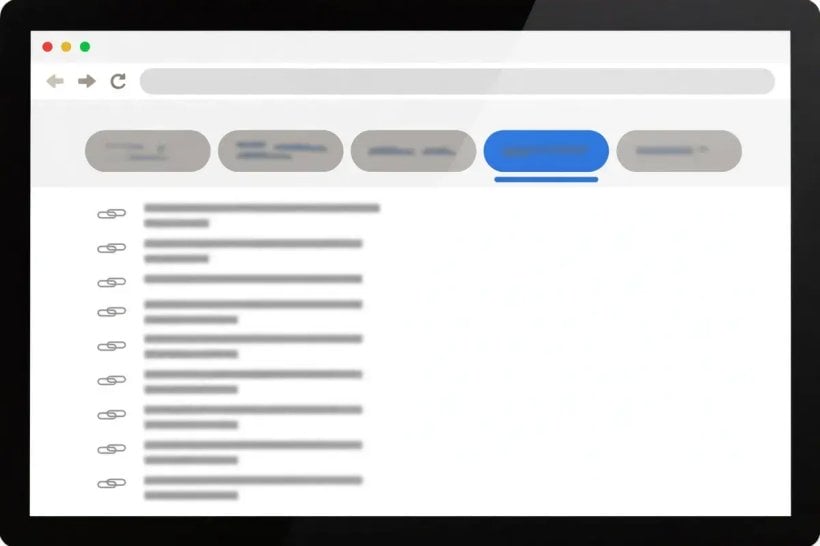
Everything so far in this article has been about using Google’s AI features. This section is about the exit — and it is the section that makes the whole guide work, because the ability to leave the AI view is what makes using it a choice rather than a trap. The Web filter is Google’s own documented route back to the classic results page, and it is the only method Google itself documents for seeing results without AI Overviews.
It works like this. Run a search. Under the search box, you will see the row of filter tabs: All, Images, Videos, News, and more. Click Web. If it is not visible in the row, open More and choose Web from the list there. That is all there is to it. Google’s help page describes the result in one sentence: the filter “displays only text-based links without features like AI Overviews”. No settings page, no toggle, no account change — one tap, on the search you just ran.
What leaves the page along with the overview is broader than that single sentence suggests. In the checks behind our companion guide, the Web view also removed knowledge panels, Top Stories, People Also Ask, video blocks and shopping modules, leaving the classic ten-blue-links page. That broader removal is what the filter was observed to do when tested in October 2026 — Google’s own wording only promises “text-based links without features like AI Overviews” — but the observed effect is the same one readers want: a plain page of links, with nothing summarised, nothing promoted and nothing standing between you and the sources.
The full step-by-step version of this, with screenshots and troubleshooting for the cases where the tab hides or the view does not stick, lives in our companion guide, How to Turn Off AI on Google Search, where the Web filter is Method 1 of four. This article does not repeat those steps, because its job is the decision, not the mechanics — and the decision is the interesting part. The Web filter is the right tool when you know what you are looking for and want to judge the sources yourself; when the question is specific enough that a summary would only slow you down; or when the AI answer has already told you enough and you want the raw material. It is the wrong tool when you genuinely need synthesis — a comparison across many pages, a topic you know nothing about — because then you are doing by hand the work AI Mode would do in seconds. Use the filter as a default when you want control, and leave it alone when you want help. Both choices are one tap away.
11. Making the Classic View Stick: What Persists and What Resets

The Web filter has one frustrating property: it does not stick. You have to pick it each time, because Google offers no way to save it as your default, and no setting anywhere in Search or your Google Account makes the plain view permanent. That is not a bug you can fix in settings; it is the documented absence of a control. Google documents no persistence setting for the Web filter and no off-switch for AI Overviews anywhere in its help pages, and the next search you run returns to the default view. This per-search behaviour is widely observed and reported in independent guides from October 2026, and it is consistent with Google documenting no persistence control — but Google does not state it in those words, so this article phrases it as observed fact, not as a quoted Google statement.
If you want the classic view every time, the workaround is to change the search engine your browser uses, so that every search you run from the address bar already includes the Web view. Our companion guide explains this as its Method 3, in full, with the steps for each browser: you create a custom search engine whose address includes the parameter that opens the Web view, and you set it as your browser’s default. The guide also covers the troubleshooting — what to do when the parameter changes, and which browsers support custom search engines at all. This article gives you the one-paragraph version because the mechanics belong there, not here; the point here is that the workaround exists, it works, and it is the only way to make the plain view your default.
The parameter itself deserves a warning. The shortcut most guides cite is udm=14, which opens the same Web view as clicking the Web tab — but it is not documented by Google anywhere in the help pages read for this article. It is an undocumented shortcut, widely observed to work through October 2026, and it can stop working without notice. There is already evidence of change: in the checks behind our companion guide, clicking the Web tab now writes udm=web into the address bar instead of the older udm=14, suggesting Google is migrating the parameter. Rebuild a custom search engine using whatever address clicking the tab produces on the day you do it, rather than copying a parameter from an old article.
A short note on things that do not work, so you do not waste time on them. Signing out does not remove AI Overviews — the companion guide’s signed-out tests in October 2026 still showed them, and Google’s help page describes availability as “to all users”, not tied to sign-in. The -ai query operator, sometimes suggested online as a way to suppress AI answers, is unreliable according to the companion guide’s testing and should not be relied on. And browser extensions that hide the overview box only hide it — Google still generates the overview behind the scenes. Hiding the box is not the same as removing the feature, and if your goal is the plain view, the Web filter and the custom search engine are the honest routes.
12. The Search Settings That Actually Matter

Search settings are where many people go looking for an AI off-switch, and they will not find one — but the settings that do exist are still worth understanding, because they decide what sticks between searches and what resets. The first rule is about sign-in. Google’s help page states it plainly: “If you’re signed in to your Google Account when you save your settings, your settings stay the same in every browser you sign in to.” Signed-out settings are saved to that browser or device only, and they rely on cookies — clear the cookies, and the settings go with them. That is the single most useful fact in this section: sign in, and your preferences follow you; stay signed out, and they live and die with the browser.
The settings you can actually change depend on your device — computer, tablet and phone each show a slightly different list — but the core list includes SafeSearch filters, search with autocomplete, spoken answers, where results open, past searches, language, location, handwriting input, and video autoplay previews. What is not on that list is the point of this article: there is no AI Overview or AI Mode on/off setting in it. You can change the language of your results, the location Google uses, and whether videos play themselves. You cannot change whether the AI summary appears.
Not every signed-in setting roams with you. Your dark theme choice, for example, “saves on each desktop when you’re signed in to your Google Account” — per device, even when signed in. Check whether a setting followed you rather than assuming it did, and remember the settings page you see today may not be the one you see next month: Google’s help pages currently carry a banner warning that settings for Search services are being updated and may not match your experience.
Search Labs is the setting people most often mistake for an off-switch. Labs is an opt-in testbed with an “AI in Search” toggle and an “AI Mode” experiment — but it covers experiments only. It does not remove AI Overviews from normal results, and it is not offered in every country. There is also a trap inside Labs: the Web Guide experiment adds AI summaries to the Web tab. If Web Guide is enabled, the Web view stops being clean — the very filter you use to escape AI answers starts showing them. If your Web filter ever seems to stop working, check Labs first and turn Web Guide off.
One more distinction: Gemini in Search is not Gemini in Google Workspace. The AI features inside Docs, Sheets and Gmail have their own settings and controls, and changing one does not change the other — our guide to Google AI in Workspace explains that side. If you turned a Gemini feature off in Gmail and wondered why Search still shows AI Overviews, this is why: different surfaces, different switches.
13. Mobile vs Desktop: Where the AI Features Differ

The AI features in Search are the same product on mobile and desktop, but they are not the same experience, and the differences decide which device to use for which job. The first difference is the layout. On mobile, the “Ask anything” bar in AI Mode sits near the bottom of the screen, within thumb’s reach, and image questions go through Lens — you point the camera, or pick a photo, and ask about it. On a desktop, the bar is in the same place but you have more ways to feed it: upload by drag-and-drop or copy-and-paste, and add open Chrome tabs to your question. If your question involves a document, a screenshot or several open pages, the desktop is the easier surface. If your question starts with something you can see — a plant, a product, a sign — the phone is the better one.
The second difference is the one feature that exists on mobile and not on desktop: the handoff from an AI Overview into AI Mode. When an overview appears on your phone, select “Show more” at the bottom of it, then type a follow-up in the “Ask anything” bar, and the context from the original search carries over. Google’s help page states this is available on mobile devices, in all regions and languages where both features are supported — and it does not say the same for desktop. Do not assume the handoff works on a computer; there, the route into AI Mode is the tab or the dedicated address, as section 5 explains. To return to your results on mobile, use Close, or long-press and swipe inward from either side of the screen.
The third difference is what you cannot do on a phone. The Google app has no setting to remove AI Overviews on any phone — the same no-off-switch rule as desktop. The Web tab is available per search in the app, so the one-tap escape still works. But the permanent workaround — a custom search engine that makes the plain view your default — depends on the browser. On iPhone, Safari offers no custom search engine option, so the reliable routes are the Web tab per search, or Firefox or Chrome on the phone, which do support them. On Android, Chrome and Firefox both support custom search engines. The same person can have a clean default search on Android and no way to get one in iPhone Safari.
14. When to Use Each One — and What AI Mode Still Gets Wrong

By now the map is complete, so this last section is a decision guide — which mode, for which job, on an ordinary day of searching.
For a quick fact — a date, a conversion, a definition — the classic results page is still the fastest tool; you do not need a conversation to find out when a shop opens. For orientation on an unfamiliar topic — “what is a heat pump, and is one worth it in a cold climate” — the overview earns its place: a short summary, a few links, and you are reading within a minute. For research — comparing options, weighing trade-offs, working through a question with no single answer — AI Mode is the right tool, because it holds a whole comparison in one conversation and lets you refine it. For shopping, AI Mode’s fan-out is useful, but prices and availability are the claims most worth checking against the linked pages, because they change daily. For local searches — a restaurant, a clinic, a service near you — the classic view, with its maps and listings, is usually better than a summarised answer. And for anything where the answer matters — health, money, law, a fact you will repeat in public — no mode is trustworthy on its own. Use whichever mode gets you to the sources fastest, then read the sources.
That last point is the honest close, because AI Mode still gets things wrong, and Google says so itself. “As with any early-stage AI product, AI Mode doesn’t always get it right” — it may misinterpret web content, or miss context that changes a source’s meaning. AI Overviews, in Google’s words, “can and will make mistakes”. The failures are quiet: a confident summary that drops a crucial qualification, a comparison that omits the option that does not fit your question, a personalised answer leaning on an out-of-date detail. None of these announce themselves. The defence is Google’s own advice on both help pages: check important information in more than one place, click the links to the supporting information, ask multiple versions of the question, and send feedback — thumbs up or thumbs down — when something looks wrong.
These features are being built in public — AI Mode went from experiment in March 2025 to more than 200 countries within seven months, and Gemini 4 Argon arrived in October 2026. This guide is a snapshot dated 8 November 2026, but the habits in it are designed to outlast the details: ask specific questions, read the links, check the important claims twice, and keep the plain list of web links one tap away.
That is the real answer to the question in the title. Using Google’s AI search features without losing the classic web results is not a setting you find once and forget. It is a habit: use AI Mode where a conversation helps, let an overview orient you where it appears, and tap the Web filter whenever you want the sources themselves. The AI is a good assistant and a bad oracle. Treat it as the first and it will save you real time. Treat it as the second and it will cost you. The classic results never went away — they are one tap under the search box, and they are still yours to choose.
Sources
- Google Search Help — “Find information in faster & easier ways with AI Overviews in Google Search”: support.google.com/websearch/answer/14901683
- Google Search Help — “Get AI-powered responses with AI Mode in Google Search”: support.google.com/websearch/answer/16011537
- Google Search Help — “Change your Search browser settings”: support.google.com/websearch/answer/2539428
- Google Blog — “Expanding AI Overviews and introducing AI Mode” (5 March 2025): blog.google/products/search/ai-mode-search/
- Google Blog — “Generative AI in Search: Let Google do the searching for you” (14 May 2024): blog.google/products-and-platforms/products/search/generative-ai-google-search-may-2024/
- Google Blog — Google I/O 2025 announcements (AI Mode US rollout, 20 May 2025): blog.google/innovation-and-ai/products/google-io-2025-all-our-announcements/
- Geroundtable — “How to Turn Off AI on Google Search” (companion guide, methods last checked 31 October 2026): geroundtable.com/how-to-turn-off-ai-on-google-search/
Checked 8 November 2026. Facts about AI Overviews, AI Mode, Gemini 4 Argon, the Web filter and Search settings are as documented on Google’s help pages and blog on that date. The AI Mode expansion dates of 21 August 2025 and 7 October 2025 and the AI Overviews expansion of 15 August 2024 are as announced by Google and summarised in secondary reports; the underlying Google blog posts were not read in full for this article. No hands-on testing was done for this article: behavioural claims are attributed to Google’s documentation or to the companion guide’s October 2026 checks, as noted in the text.


0 Comments