
There is no switch that turns off AI on Google Search. Google says so itself: AI Overviews are a core part of Search, like knowledge panels, and they cannot be turned off. What you can do is stop seeing them, and four methods actually work. The fastest is clicking the Web filter after you search. The most permanent is making a custom search engine your browser default so every address-bar search opens the plain Web view. The other two, a URL trick and a browser extension, cover the cases the first two miss. This guide walks through all four step by step, says plainly what each one cannot do, and lists the popular tricks that do not work, so you do not waste time on them. Methods last checked 31 October 2026.
Before the methods, a quick comparison so you can pick the right one for how you search. If you search a few times a day and do not mind one extra click, Method 1 is enough. If you search all day from the address bar, Method 3 is the one to set up. If you want the normal Google page but without the AI box, Method 4 is your answer.
| Method | Works where | How long it lasts | Effort |
|---|---|---|---|
| 1. Web filter, clicked by hand | Every browser and the Google app | One search | One click |
| 2. udm=14 URL trick | Every browser, by editing the address | One search | Seconds |
| 3. Custom search engine with udm=14 | Chrome, Edge, Firefox and Brave on desktop; Chrome and Firefox on mobile | Until you change it | One-time setup, a few minutes |
| 4. Extension or uBlock filter | Desktop browsers (full uBlock Origin on Firefox; limited on Chrome) | Until Google changes its page layout | One-time install |
Why Google will not give you an off switch
Google’s own help page for AI Overviews puts it in one sentence: AI Overviews are a core Google Search feature, like knowledge panels, and features cannot be turned off. That is why there is nothing in your Google Account, in Search settings, or in the Google app that removes them. The only control Google documents is the feedback under each overview, the thumbs up and thumbs down icons that open a report-a-problem form. That tells Google an answer was bad. It does not remove the next one.
Two popular pieces of advice fail for the same reason, and it is worth killing them here so you do not chase them. The first is Search Labs. Labs is Google’s opt-in area for experimental features, and its “AI in Search” toggle only covers experiments. AI Overviews are no longer an experiment, so switching that toggle off does not remove them from normal results, and Labs is not offered in every country anyway. The second is signing out. Tests in October 2026 that were not signed in to any account still showed AI Overviews. Your account is not the trigger; the feature is built into the results page itself.
One more caution about Labs, because it can undo your fix: Labs has an experiment called Web Guide that adds AI summaries to the Web tab. If you ever join Labs and enable it, the one view this guide relies on stops being clean. Leave Web Guide off.
How AI Overviews work, in sixty seconds
When you ask Google a question it thinks a summary would help with, it does not just match your words to pages. It retrieves a set of relevant pages, then its Gemini model synthesises them into a short answer with links to dig deeper. That is retrieval-augmented generation: the answer is generated, not copied, which is why Google itself warns that AI Overviews can and will make mistakes. For dates, numbers, money and health, open one of the linked sources and check it yourself.
This matters for choosing a method, because hiding and disabling are two different jobs. The Web filter and the udm=14 trick ask Google for a different kind of results page, one that never contains an overview. Extensions and uBlock filters do something else: Google still generates the overview on its servers, and the extension hides the box before you see it. The page looks clean either way, but only the first two methods stop the overview from being part of your results at all. Keep that distinction in mind when you weigh Method 4 against Method 3.
It also explains why overviews appear on some searches and not others. Google shows one only when its systems decide it will help, so many searches never get one. In October 2026 tests, none of five “near me” searches produced an overview. If a search has no overview, none of these methods changes anything, because there is nothing to remove.
Method 1: Use the Web filter after you search
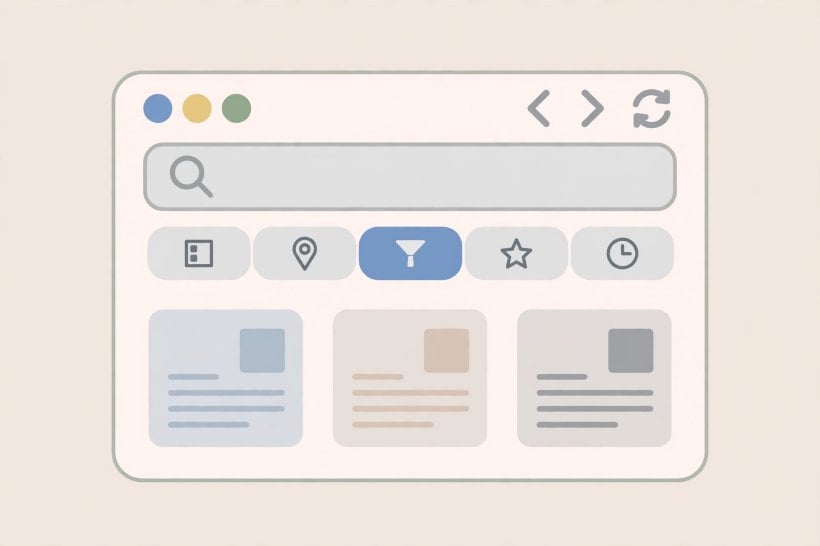
The Web filter is Google’s own way to get plain results, and it is the only method Google documents. After you run a search, look at the row of filter tabs under the search box: All, Images, Videos, News, and more. Click Web. If you do not see it, click More and pick Web from that list. Google reloads the page with a simple list of text links and no AI Overview.
What the Web view removes is broader than the overview. Google’s help page says it displays only text-based links without features like AI Overviews, and in practice that also means no knowledge panels, no top stories carousel, no People Also Ask boxes, no video blocks and no shopping modules. What you get is the classic blue-link page. For many people that is the appeal, not a drawback, but know the trade before you commit to it as your everyday view.
The catch is that it lasts for one search only. Your next search goes back to the normal page, and you click Web again. That is fine if you only want a clean page occasionally, and it is the method that works everywhere, including the Google app and Safari, where the permanent methods below are not available. If the extra click every time annoys you, Method 3 automates exactly this view.
Method 2: Add udm=14 to the search address
When you click the Web filter, Google adds a parameter to the address. You can add it yourself instead, which is faster than hunting for the tab. After running a search, go to the address bar, add &udm=14 to the end of the address, and press Enter. A search that looked like this:
https://www.google.com/search?q=best+laptops
becomes this:
https://www.google.com/search?q=best+laptops&udm=14
The page reloads into the Web view, with plain links and no AI Overview. The trick was popularised in May 2024, shortly after AI Overviews launched in the United States, and it was still working in tests through October 2026.
Two honest caveats. First, Google has never documented udm=14 as a stable public interface. It works because Google allows it, and clicking the Web tab now writes udm=web into the address instead of the older value, which suggests the old parameter could stop being accepted at some point without warning. Treat it as a handy shortcut, not a contract. If it ever stops working, Method 1, clicking the Web tab, remains the documented fallback. Second, this only changes the search you are looking at. Typing into the box on the google.com homepage still sends a normal query, so for that search you click Web after the results load, or use Method 3 for everything.
Method 3: Make a custom search engine your default
This is the closest thing to permanent, and it is the method to choose if you search from the address bar all day. You add a new search engine to your browser that points at Google’s Web view, then set it as your default. Every address-bar search then opens the Web filter automatically, with no AI Overview and no extra click.
The engine address you need is:
https://www.google.com/search?udm=14&q=%s
The %s is a placeholder your browser replaces with your search terms. Some guides write the same address with the parameters in the other order, https://www.google.com/search?q=%s&udm=14. Both forms point at the same Web view; use whichever your browser accepts.
In Chrome on a computer, the steps are: open Settings, go to Search engine, then Manage search engines and site search. Click Add, give the engine a name such as “Google Web”, a shortcut such as “gw”, and paste the address above into the URL field. Click Add, then open the three-dot menu next to the new entry and choose Make default. From then on, address-bar searches open the Web view. Edge, Brave and Firefox follow the same pattern through their own search-engine settings, using the same address.

On mobile, Android Chrome supports the same custom-engine setup, and Firefox on mobile does too. That is the real permanent option on a phone, because the Google app itself has no setting for this. Two limits to know. First, as with Method 2, this changes address-bar searches only. Searching from the box on the google.com homepage still sends a normal query, so click Web after those results load. Second, if you ever want the normal Google page back, including AI Overviews for a question where a summary would help, switch your default search engine back to Google in the same settings screen. Nothing here is irreversible, and nothing here touches your Google account.
A note on safety, since this method asks you to change a browser setting: you are pointing your browser at Google’s own Web view, using a parameter Google itself writes into addresses when you click the Web tab. You are not installing anything, not handing your searches to a third party, and not modifying Google’s service. Your queries still go to Google, exactly as before, just to its plain-links view.
Method 4: Hide the box with an extension or a uBlock filter
If you like the normal Google page, with its panels and carousels, and only want the AI box gone, an extension is the better fit than the Web view. Dedicated extensions such as Hide Google AI Overviews and Bye Bye Google AI remove the overview block automatically on every search. Install one from your browser’s official store, Chrome Web Store or Mozilla Add-ons, and there is nothing further to configure. Only download extensions from the official stores; a free extension from anywhere else is not worth the risk to your browsing data.
If you already run uBlock Origin, you may not need another extension at all. In the full version of uBlock Origin, open the dashboard, go to the My filters tab, and add a cosmetic filter rule for Google’s overview element. The selector most recently reported working, in October 2026, is:
google.com##.hdzaWe
Click Apply changes, reload your Google search, and the overview block is hidden. Other selectors have circulated for the same block, including one targeting the element’s data attribute, because Google renames its page classes from time to time. That is the weakness of this method: a filter that works today can silently stop working after Google changes its page layout, and you will only notice when an overview reappears. If your filter stops working, check community filter lists for an updated selector rather than assuming the method itself is dead.
One important distinction for this method, and one that matters on Chrome specifically: the full uBlock Origin with custom-filter support is a Firefox strength. On Chrome, the available version is uBlock Origin Lite, which does not have the same custom-filter capability. If you are on Chrome and want the filter route, a dedicated extension from the Chrome Web Store is the simpler path. And remember the distinction from earlier: extensions and filters hide the box. Google still generates the overview on its servers when a query triggers one; you simply never see it. If your goal is a page that looks clean, that is enough. If your goal is that no AI answer is generated for your query at all, only Methods 1 to 3 do that, because they ask Google for a page that never contains one.
What you give up with the plain-links view
Methods 1 to 3 all land you on the Web view, so it is worth being clear about what leaves the page with the overview. Knowledge panels go, top stories go, People Also Ask goes, video blocks and shopping modules go. What remains is ten plain links per page, in the classic format. For research, that is often better: every result is a page you chose, not a summary you did not ask for. For quick factual questions, it is slower: a question like a date or a conversion that the overview would have answered in one line now costs you a click into a source.
The practical answer is to treat the methods as a default, not a prison. Keep the Web view as your default through Method 3, and when a question would genuinely benefit from a summary, run it as a normal Google search: switch your default back for a moment, or just search from the google.com homepage box, which always sends a normal query. You lose nothing by mixing the two. The goal is control over when AI answers you, not a vow never to see one.
On your phone
Mobile is where most guides run out of answers, because the Google app has no setting for this at all. Inside the app, your options are the Web tab after each search, or adding -ai to the end of your query, a trick that works for one search but is unreliable. Neither is permanent, and neither is satisfying if you search on your phone all day.

The permanent mobile route is the browser, not the app. On Android, Chrome supports the same custom search engine setup as desktop Method 3, so address-bar searches open the Web view. Firefox on Android also supports it, and Firefox Android runs the full uBlock Origin with custom-filter support, which gives you the Method 4 route on a phone too. On iPhone, Safari does not offer a custom search engine option, so the honest answer is the Web tab per search or the -ai trick, or switching to Firefox or Chrome on the phone where the custom-engine setup is available. If you mostly search through the Google app, the Web tab after each search is the method that actually exists for you, and it is worth learning where it hides: in the tab row, or under More when the row is crowded.
What does not work
A lot of advice on this topic is outdated, and checking it against what Google actually offers saves real time. The Search Labs “AI in Search” toggle does not remove AI Overviews from normal results; it only opts you out of experiments. Signing out of your Google account does not remove them; signed-out tests still show them. Deleting your Gemini activity does not remove them either; that controls saved activity, not the results page. The -ai operator appended to a query sometimes suppresses the overview for that search, but it is unreliable and it lasts for one search only. And switching to AI Mode, Google’s chat-style search tab, is not an alternative to overviews at all; it is a separate, more AI-heavy experience, and the way to avoid it is simply not to open it. The Web view does not use AI Mode, which is one more reason it stays the cleanest option.
One more option deserves a mention even though it is not a method for Google itself: changing your default search engine to one without AI overviews, such as DuckDuckGo or Brave Search. That is a genuine permanent fix if you are willing to leave Google’s index behind. It is outside this guide’s scope because it changes where you search, not how Google behaves, but for readers who want zero AI summaries with zero maintenance, it is the simplest answer of all.
Which method should you pick?
The right method depends on how you search, not on which one is technically best. Four common cases cover most readers.
You search a few times a day and like Google’s normal page. Use Method 1, the Web filter, on the searches where an overview gets in your way, and leave everything else alone. One click, no setup, nothing to maintain, and it works on every device you own including the Google app.
You search all day from the address bar. Set up Method 3, the custom search engine, once. It is the only method that makes the clean view your default rather than a repeated action, and after the few minutes of setup it costs you nothing. This is the recommendation for desktop users and for Android users who search in Chrome.
You like the normal Google page and only hate the AI box. Use Method 4, a dedicated extension, or a uBlock filter if you already run the full uBlock Origin. You keep panels, carousels and knowledge boxes, and only the overview disappears. Accept the maintenance: check occasionally that the box has not reappeared after a Google layout change, and update the filter or the extension when it has.
You search mostly on your phone. If you use Android, set up the custom engine in Chrome or Firefox and search from the browser, not the Google app. If you use iPhone, accept the Web tab per search, or move your searching to Firefox or Chrome on the phone where the custom engine exists. If you live inside the Google app, the Web tab is the method that exists for you, and learning to find it under More is the whole trick.
Whichever you pick, put a reminder in your calendar for three months out to re-check it. Google changes its search page without notice, and every method here except the documented Web tab depends on something Google could alter. A thirty-second check, one search with an overview-prone question, tells you whether your setup still holds. If it does not, this guide’s troubleshooting section is the first place to look, and the Web tab is the fallback that does not depend on any trick.
Troubleshooting: when a method stops working
You cannot find the Web tab. It is not always in the visible tab row. Click More at the end of the row and it is listed there. On some queries and in some regions the tab row itself is crowded, so More is where Web hides.
udm=14 stopped working. First check whether the address now reads udm=web after clicking the Web tab; Google has been moving to that value. If the old parameter stops being accepted, fall back to clicking the Web tab, which is the documented route, and rebuild your custom search engine with the address that clicking the tab produces.
You set the custom engine but overviews still appear. The usual cause is where the search started. The custom engine only governs address-bar searches. A query typed into the google.com homepage box, or a search inside the Google app, bypasses it. Run those searches from the address bar, or click Web after the results load.
Your uBlock filter stopped hiding the box. Google renamed the page classes again. This is expected, not a sign the method is dead. Check community filter lists for a current selector, replace the old rule, and click Apply changes. If you would rather not maintain filters, a dedicated extension shifts that maintenance to its developer.
An AI summary appeared inside the Web view. Check whether you joined Search Labs and enabled the Web Guide experiment, which adds AI summaries to the Web tab. Turn Web Guide off and the view goes clean again.
Frequently asked questions
Can you permanently turn off AI Overviews? No, not inside Google. There is no setting, in your account or anywhere else, that disables them for good. The permanent-feeling options are workarounds: a custom search engine that always opens the Web view, or an extension that always hides the box.
Does the udm=14 trick still work? Yes, as of the October 2026 checks this guide relies on, including tests on 9, 16 and 17 October 2026. It is undocumented, so it could change without notice, and Google now writes udm=web when you click the Web tab. If it ever fails, the Web tab itself is the fallback.
Is using udm=14 against Google’s rules? No. You are opening Google’s own Web filter view, the same view its help page documents, through a parameter Google itself writes into addresses. You are not modifying Google’s service, not scraping it, and not routing your searches anywhere else.
Does hiding the overview stop Google generating it? No. Extensions and uBlock filters hide the box after Google generates it. Only the Web view methods, clicking Web, the udm=14 address, or a custom engine, ask Google for a page that never contains an overview in the first place.
Can you turn off AI on Google Search on iPhone? Partly. Safari has no custom search engine option, so on iPhone the reliable methods are the Web tab after each search, or using Firefox or Chrome on the phone with a custom engine set up as in Method 3. The Google app has no setting for it on any phone.
What about AI Mode? AI Mode is a separate tab, not part of normal results. There is no switch for it either, and there does not need to be: it only opens when you choose it. The Web view does not use AI Mode.
Does this work for Google’s AI answers in other products? No. This guide covers Google Search only. Gemini in Gmail, Docs, Drive and on Android phones has its own settings on each surface, and turning those off is a different job.
Sources and further reading
Google’s own help page is the authority for the central claim of this guide, that AI Overviews cannot be turned off and that the Web filter shows only text-based links: Google Search Help, AI Overviews in Google Search. The working methods were checked against guides updated in October 2026 that tested them on google.com through that month, and this article dates its own check to 31 October 2026 so you can tell when the advice was last true. Because Google changes its search page without notice, treat any method here as current as of that date, and re-check the Web tab first if a shortcut ever fails.
For context on why this matters beyond personal preference, AI Overviews have reshaped how people use search results: with a summary answering the question on the page, fewer readers click through to the sites the summary drew on. That is why the choice between a summary and a list of links is worth making deliberately, and why a one-time browser setup that returns the choice to you is worth the few minutes it takes.
Related reading on this site: AI Overviews Now Appear in Over 80% of Searches, and Google Backs One Robots.txt Switch for All AI Training, on the separate question of how site owners, rather than searchers, control Google’s AI.


0 Comments